
Pixelate Image Online
Pixelate your images online for free. Apply mosaic effects to the whole image or select specific areas with rectangle or brush tools. Perfect for hiding sensitive information in photos.
Allowed Filetypes: All image formats (JPG, PNG, TIFF, RAW, etc.)
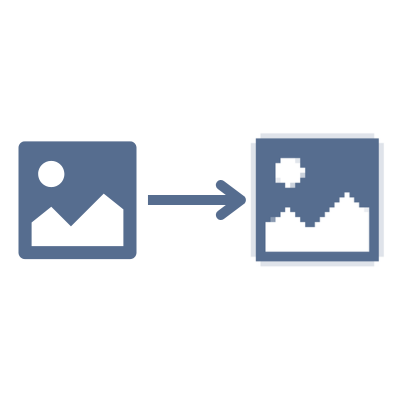
How to Pixelate an Image
- 1Upload your image by clicking the upload area or drag and drop your file
- 2Choose 'Whole Image' to pixelate everything, or 'Select Areas' to target specific regions
- 3Use the rectangle tool to draw boxes around areas you want to pixelate
- 4Or switch to brush mode to paint over irregular shapes
- 5Adjust the block size slider to control the pixelation strength
- 6Preview your result and download the pixelated image
Frequently Asked Questions
What is image pixelation?
Pixelation is a mosaic effect that makes parts of an image appear blocky by grouping pixels into larger squares. It's commonly used to hide faces, license plates, text, or other sensitive information in photos while keeping the rest of the image clear and recognizable.
Can I pixelate multiple areas at once?
Yes! You can select multiple areas using either rectangles or the brush tool. Draw as many selection boxes as you need, or paint over multiple regions. You can also combine both methods - use rectangles for larger areas and the brush for smaller details.
What's the difference between pixelate and blur?
Pixelation creates a mosaic effect with visible square blocks, making it obvious that something has been censored. Blur creates a smooth, out-of-focus effect. Pixelation is often preferred for censoring sensitive information because it's more recognizable as intentional censorship.
How do I remove a selection I made?
Simply click on any rectangle selection to remove it. For brush selections, use the 'Clear' button to remove all painted areas. You can also use 'Clear All' to start fresh with a clean image.
Are my photos private and secure?
Absolutely! All processing happens directly in your browser using WebAssembly technology. Your images are never uploaded to any server - they stay completely on your device. This makes our tool perfect for sensitive photos containing personal information or confidential documents.
What image formats can I pixelate?
You can pixelate images in JPEG/JPG, PNG, WebP, GIF, AVIF, BMP, ICO. Choose your preferred output format from AVIF, BMP, GIF, JPG (JPEG), PNG, SVG, TIFF, WebP.
Can I process multiple images at once?
Yes! Upload multiple images and apply the same settings to all of them. Each image gets its own preview where you can make individual adjustments. Download images one by one or use 'Process & Download All' to get everything at once.
How do I choose the right pixelation strength?
The 'Block Size' slider controls how large the pixelated squares are. For hiding details like faces, a block size of 10-15 usually works well. For text or small details, you may need larger blocks (20-30). Use the live preview to find the perfect balance between hiding information and keeping context.
What are common uses for pixelation?
Common uses include hiding faces for privacy, obscuring license plates in photos, censoring text or documents, protecting personal information in screenshots, hiding inappropriate content, and creating artistic mosaic effects.
I have another question
We are always happy to get feedback to expand the tool or clarify things.