AI Aspect Ratio Changer
Change an image's aspect ratio without cropping. AI extends it into the new ratio with generated content. Turn a portrait into 16:9, a square into a story, or any custom size. Batch up to 5 images and several ratios at once, with a zoomable before/after preview. Free to try.
Allowed Filetypes: PNG, JPEG, WebP
Max size: 15MB • Max files: 5
One photo, the right format for every place you use it
Pick what you're making. Every example is a real, unedited result from this tool.

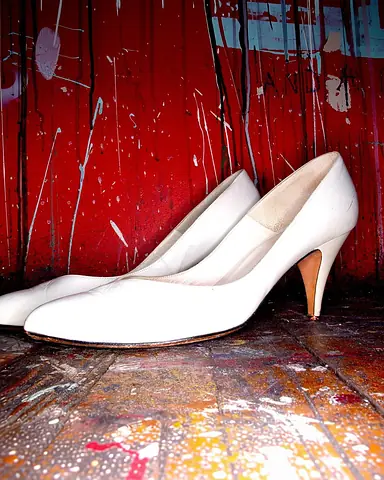
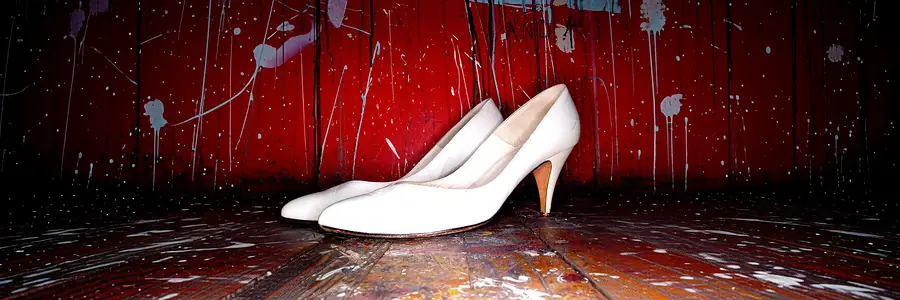
Dashed frame = your original. The rest is generated.
Product photos that fit every slot in your shop
Supplier photos come in every shape. Extend them instead of cropping, so the whole product stays in the picture.
- Square packshot to a 4:5 listing or Instagram Shopping post
- One product photo into a wide banner for your shop homepage
- Tightly framed shots get breathing room, no cut-off edges
How to change an image's aspect ratio with AI
- 1Drop up to 5 images (PNG, JPG, or WebP) into the upload area.
- 2Pick one or more target ratios (1:1, 16:9, 9:16, …) or switch to By pixels for an exact size. You can combine several per run.
- 3Choose a fit mode. Extend keeps your whole image and fills the margin; Smart crops the long side a little and extends the short one. Then pick which direction to extend toward.
- 4Optionally add a prompt to describe what the AI should add, then click Change Aspect Ratio. Each result shows a before/after preview you can zoom in on.
- 5Rename if you like, then download images individually or grab the whole batch as a ZIP. Signed in? Results are saved to My Files automatically.
Frequently Asked Questions
How is this different from a normal aspect ratio changer?
A normal (free, in-browser) aspect ratio changer reaches a new ratio by cropping pixels away or padding with a flat color. This AI tool reaches the new ratio by inventing new pixels: it extends your image into the target ratio with generated content (outpainting), so nothing important gets cropped. Use the free Aspect Ratio Changer when you want a quick crop, and this tool when you want to keep the whole image.
Is the AI aspect ratio changer free?
Yes. You can change a few images per day for free, on canvases up to 1536 px, using our Imagy Outpaint model, built on the open Qwen Image Edit. Imagy Pro unlocks canvases up to 4096 px and the Bria Expand and Flux Pro Fill models, billed in AI credits per image.
What's the difference between Extend and Smart fit?
Extend never crops. Your whole image is placed on the new canvas and the AI fills the surrounding margin. Smart crops the over-long axis a little and extends the short one, so less new content is invented; it's a good middle ground when a full extend would add too much sky or floor.
Can I change several ratios at once?
Yes. Select multiple ratio presets or add custom ones, and each image is processed once per ratio in a single run (up to 10 combinations per run). It's perfect for producing a square, a 16:9, and a 9:16 version of the same photo together.
What models does this use, and what do they cost?
Free runs Imagy Outpaint, built on the open, commercial-safe Qwen Image Edit model on our own servers; it keeps your original photo and continues the scene around it. Pro lets you choose that same model for 1 credit, Bria Expand (fast, trained on licensed data) for 2 credits, or Flux Pro Fill (top quality, prompt-driven) for 3 credits. The latter two support canvases up to 4096 px.
Do I have to write a prompt?
No, the prompt is optional. Leave it blank and the AI continues the scene from the surrounding pixels. Add a prompt (English only for now) when you want to steer what appears in the new area, like "more sky" or "grass field".
What's the maximum image size?
Uploads up to 15 MB per image. Free output canvases go up to 1536 px on the longest side, Pro up to 4096 px. Larger inputs are scaled to fit the canvas before generation.
Are my images stored?
Uploaded originals are deleted automatically within 48 hours. If you're signed in, results are saved to your My Files storage; anonymous results are removed after 3 days.
I have another question
We are always happy to get feedback to expand the tool or clarify things.