Print a Large Image on Multiple Pages
Upload your image, pick the paper size and set how many sheets wide and tall the poster should be. The preview shows the page grid, and you get one PDF with every page, printer margins, cut marks and an assembly map. Print it at 100 %, cut along the marks and tape the sheets together. Everything runs in your browser – free, no watermark, no upload.
Allowed Filetypes: JPEG, JPG, PNG, WebP, AVIF, GIF
Poster size by number of sheets
Largest poster a grid of portrait sheets can hold with a 5 mm printer margin. A wide image uses less height and a tall one less width; the summary above the preview shows the exact size for your image.
| Pages (wide × tall) | Sheets | A4 poster | Letter poster |
|---|---|---|---|
| 1 × 2 | 2 | 20 × 57 cm | 8 × 21 in |
| 2 × 2 | 4 | 40 × 57 cm ≈ A2 | 16 × 21 in |
| 2 × 3 | 6 | 40 × 86 cm | 16 × 32 in |
| 3 × 3 | 9 | 60 × 86 cm ≈ A1 | 24 × 32 in |
| 3 × 4 | 12 | 60 × 115 cm | 24 × 42 in |
| 4 × 4 | 16 | 80 × 115 cm ≈ A0 | 32 × 42 in |
| 4 × 5 | 20 | 80 × 144 cm | 32 × 53 in |
| 5 × 6 | 30 | 100 × 172 cm | 41 × 64 in |
Need a specific width, for example 80 cm? Add pages until the summary shows the size you want, or pick A3 paper to use fewer sheets.
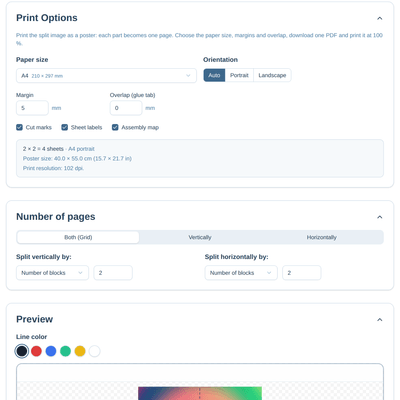
How to print an image on multiple pages
- 1Select your image or drop it into the grey area above
- 2Pick your paper size (A4, Letter, A3 …), the orientation and the printer margin. Add an overlap if you want a glue tab
- 3Under "Number of pages", set how many sheets wide and tall the poster should be, for example 2 × 2 or 3 × 3. The summary shows the finished poster size and the print resolution
- 4Check the page grid in the preview. Drag a line if a cut should not run through a face or a word
- 5Click "Download PDF for printing". You get one PDF with every page plus an assembly map on page 1
- 6Print the PDF at 100 % (actual size). Do not use "fit to page" or "shrink to printable area"
- 7Cut along the marks and tape the sheets together from the back, following the row and column labels
Frequently asked questions about printing an image on multiple pages
How do I print a large picture on several A4 or Letter sheets?
Upload the picture, choose the paper size and set the number of pages wide and tall. Download the PDF and print it at 100 %. Each page holds one part of the picture; tape the pages together in the order of the row and column labels.
How big will my poster be?
The summary shows the finished poster size as soon as you set the pages. As a rule of thumb with 5 mm margins: 2 × 2 A4 sheets give about 40 × 57 cm (roughly A2), 3 × 3 sheets about 60 × 86 cm (roughly A1) and 4 × 4 sheets about 80 × 115 cm (roughly A0). The table above lists more grids. The image is never cropped or stretched, so a wide picture uses less height and a tall one less width.
Which paper sizes are supported?
A4, A3, A5, Letter, Legal and Tabloid, plus any custom size in millimetres or inches. Portrait and landscape are both possible; "Auto" picks the orientation that gives the larger poster.
Why does the printout not match the poster size?
Almost always because the print dialog scaled the pages. Print at 100 % or "actual size" and turn off "fit to page", "shrink to fit" and "scale to printable area". Page 1 of the PDF repeats this hint so it is not forgotten.
Will the poster look blurry?
The summary shows the print resolution in dpi. Above 150 dpi the poster looks sharp, 100 dpi still looks fine from a normal viewing distance, and below 60 dpi the picture becomes visibly pixelated. If the number is low, use a larger image or fewer sheets. The tool never upscales your image.
What are margins and overlap for?
Most home printers cannot print right up to the edge of the paper, so every page keeps a printer margin (5 mm by default; set it to 0 for a borderless printer). The overlap adds a strip of the neighbouring page on the right and bottom edges, so you can glue the sheets on top of each other instead of butting them edge to edge.
How do I assemble the sheets?
Page 1 of the PDF is an assembly map: a small preview with the grid and the row and column labels. Every page carries cut marks in the corners and its label in the bottom margin. Cut along the marks, lay the pages out as shown on the map and tape them from the back.
Is this a free alternative to Rasterbator or Block Posters?
Yes. Like those tools it splits a picture into printable pages, but everything runs in your browser: no upload, no account, no watermark and no dot effect. You choose paper size, margins, overlap, cut marks and labels and get a normal PDF you can print anywhere, from a home printer to a copy shop.
Can I print from my phone?
Yes. Upload from your camera roll, download the PDF and print it from the Files app or share it with your printer app. Print at 100 % here as well.
I only need the image split into parts, not a PDF
Use our Split Image tool. It cuts an image into equal parts or tiles for Instagram grids, carousels and banners and downloads them as image files. On this page you can also switch the output to "Image files" if you want one picture per page.
I have another question
We are always happy to get feedback to expand the tool or clarify things.