Photo to Paint by Numbers
Turn your own photo into a custom paint-by-numbers template: numbered areas, a color legend and a preview of the finished painting. Free, printable and private.
Turns your photo into a template right away, in your browser. Free and unlimited.
Allowed Filetypes: JPEG, JPG, PNG, WebP, GIF, AVIF, BMP
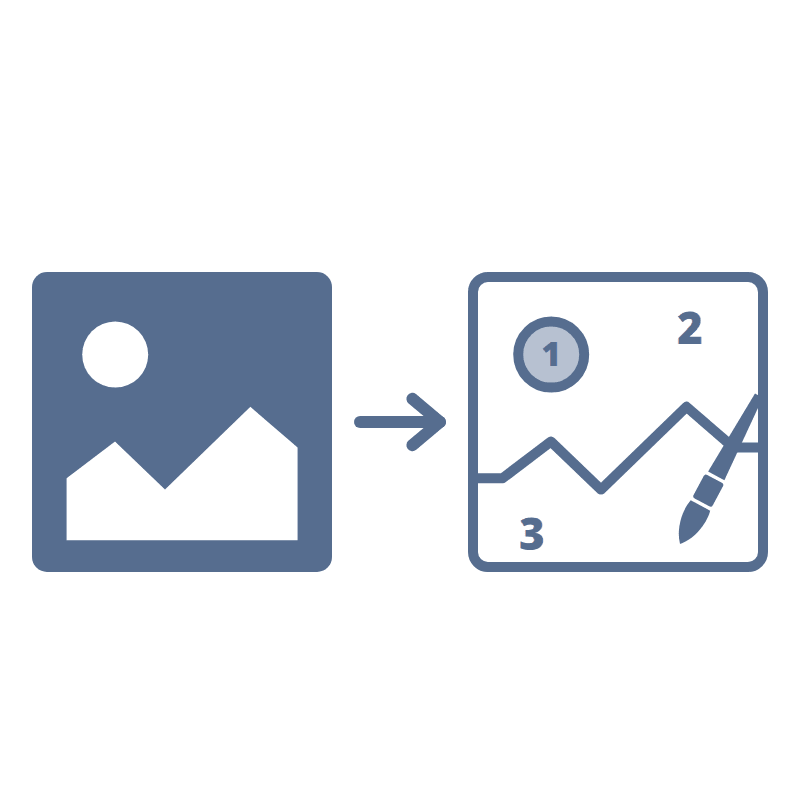
How to turn a photo into paint by numbers
- 1Select a photo or drop it into the grey area above. Pets, portraits, landscapes and flowers work well. JPG, PNG, WebP, GIF, AVIF and BMP are supported.
- 2The template appears right away. Switch between Template and Color preview, and drag the divider to compare it with your photo.
- 3Set the number of colors and the detail. Fewer colors and less detail give larger areas that are easier to paint.
- 4Download the PDF with the template, the color palette and the preview, or click Print. PNG, JPG and SVG include the legend under the template.
Frequently asked questions
How do I make a paint by numbers from my own photo?
Drop the photo above. The generator reduces it to the number of colors you choose, outlines every area, writes the color number into each one and lists the colors in a legend. Adjust colors and detail until you like the preview, then print or download the template.
Is this paint by numbers generator free?
Yes. There is no sign-up, no watermark and no limit on the number of photos. Everything runs in your browser, so your photos are never uploaded.
How many colors should I choose?
12 to 18 colors suit most photos and beginners. Portraits and detailed landscapes look more natural with 24 to 36 colors, but you get more and smaller areas. Colors that the photo hardly uses are dropped, so the legend can list fewer colors than you set.
How do I mix the paint colors?
Every color in the legend has a number and a hex code. Mix acrylic paint to match the swatches, or take the hex codes to a craft store or paint mixing app. Paint the lightest colors first and the darkest last: dark paint covers the gray outlines and numbers best.
Can I print the template on canvas?
Yes. Print the template on paper to trace it onto canvas, or send the PDF or SVG to a print shop. The SVG is a vector file, so it stays sharp at any canvas size.
Why are some areas too small to paint?
Fine details like hair, grass or fabric patterns turn into many small areas. Grass, leaves and fur are simplified automatically; lower the Detail slider or the number of colors to merge even more. Faces keep their eyes and mouth: details too small for a number are printed already painted in their color, so there is nothing tiny left to paint.
What does Simplify with AI do?
It redraws your photo as a simple illustration with flat colors before the template is made, which gives fewer and cleaner areas for pets, landscapes and busy scenes. The result is an illustration, not an exact likeness, so use the normal template for portraits. You get 3 free AI uses a day (shared with the other AI tools); on Pro, each photo uses 1 AI credit. Colors and detail stay adjustable afterwards, and you can switch back to your photo at any time.
Can I see what the finished painting will look like?
Yes. Switch the preview to Color preview to see every area filled with its color. With Add the color preview switched on, it is included as an extra PDF page or as a separate PNG.
I want a black and white coloring page instead
Use Photo to Coloring Page for printable outlines without numbers, or Photo to Line Art for a clean line drawing.
I have another question
We are always happy to get feedback to expand the tool or clarify things.