Add Shadow to Image
Add a realistic shadow to any image with AI. Upload a transparent cutout or a normal photo — the AI shadow generator finds your object and casts a natural drop shadow under it, with full control over direction, strength, softness, and background. Batch up to 10 images. Free to try.
Allowed Filetypes: PNG, JPEG, WebP
Max size: 15MB • Max files: 10
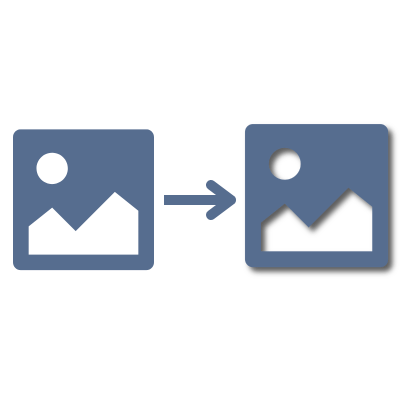
How to add a shadow to an image with AI
- 1Drop up to 10 images (PNG, JPG, or WebP) into the upload area — a transparent cutout or a normal photo both work.
- 2Set the shadow direction, strength, and softness, choose a transparent or white background, and pick whether to keep the original canvas size or expand it to fit the shadow.
- 3Click Add Shadow — the AI finds your object and casts a realistic shadow on our servers, then shows a before/after preview.
- 4Rename if you like, then download each image or grab the whole batch as a ZIP. Signed in? Results are saved to My Files automatically.
Frequently Asked Questions
How do I add a shadow to an image?
Upload your image (a transparent cutout PNG or a normal photo), choose the shadow direction, strength, and softness, and click Add Shadow. The AI detects your object and casts a realistic shadow under it, then you download the result as a PNG.
Is the AI shadow generator free?
Yes — you get a few free AI credits per day (shared across all Imagy AI tools), with output up to 1024 px on the longest side. Imagy Pro outputs at full resolution, billed at 1 AI credit per image.
Do I need to remove the background first?
No. You can upload a transparent cutout PNG, but a normal photo works too — the AI detects the object automatically before adding the shadow.
Does it change my object?
No. The object's own pixels are kept intact — the shadow is the only thing the AI adds, so your product or subject stays sharp and unchanged.
Can I control the shadow direction and strength?
Yes. You can set the direction (left, center, or right), the strength (light, medium, or strong), and the softness (sharp, medium, or soft), choose a transparent or white background, and keep the original canvas size or expand it to fit the shadow.
What output format do I get?
A PNG with your object and its generated shadow. On a transparent background the shadow stays see-through so you can place it on any backdrop; you can also flatten it onto white.
Can I add shadows to multiple images at once?
Yes — up to 10 images per batch. Each is processed in parallel, you can rename them individually, and download everything as a ZIP.
Are my images stored?
Uploaded originals are deleted automatically within 48 hours. If you're signed in, results are saved to your My Files storage; anonymous results are removed after 3 days.
I have another question
We are always happy to get feedback to expand the tool or clarify things.