AI Photo Restoration
Repair old, blurry, or damaged photos with AI — remove noise and compression artifacts, sharpen faded details, bring faces back to life, and optionally add realistic color to black-and-white pictures. Batch up to 10 photos, with a zoomable before/after preview of every result. Free to try.
Allowed Filetypes: PNG, JPEG, WebP
Max size: 15MB • Max files: 10
Real Restoration Examples
Powered by modern, high-end AI restoration models, our tool brings faded portraits, damaged scans, and blurry snapshots back to life — recovering faces and fine detail, and even adding natural color to black-and-white photos. Every example below is a real, unedited result.


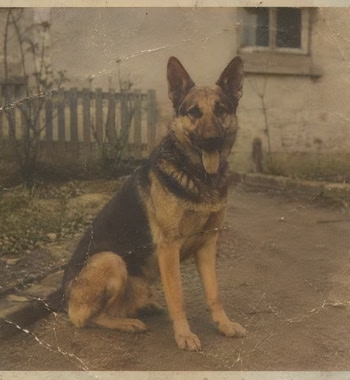
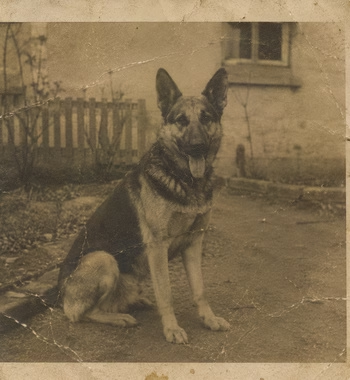
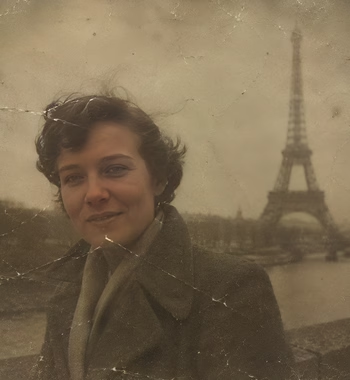
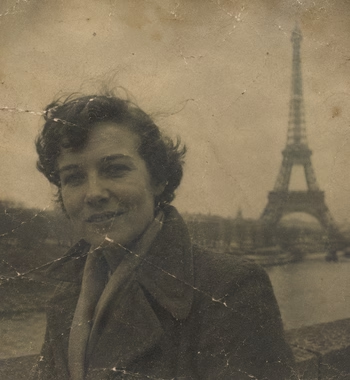

How to restore an old photo with AI
- 1Scan or photograph your old picture and drop up to 10 photos (PNG, JPG, or WebP) into the upload area.
- 2Leave Enhance faces on for portraits — the AI detects every face and rebuilds it in detail.
- 3Turn on Colorize black & white photos to add realistic color, or Also enlarge 2x (a Pro feature) if the original is a small scan.
- 4Click Restore Photos — the AI cleans noise, blur, and compression damage on our servers and shows a before/after preview. Click any result to zoom in.
- 5Rename if you like, then download photos individually or grab the whole batch as a ZIP. Signed in? Results are saved to My Files automatically.
Frequently Asked Questions
Is the AI photo restoration free?
Yes — you get a few free AI credits per day (shared across all Imagy AI tools), with inputs up to 1280 px on the longest side, including scratch repair, face enhancement, and colorization. Imagy Pro unlocks a stronger AI restoration model and inputs up to 2048 px, billed at 1 AI credit per photo.
What kinds of damage can it fix?
Blur and soft focus, noise and film grain, JPEG compression artifacts, faded detail, and the general softness of old scans. Physical damage too: with Remove scratches on, the AI detects scratches, tears, creases, and dust and fills them in from the surrounding image. It works on the whole photo and pays special attention to faces.
How does face restoration work?
The AI detects every face in the photo, rebuilds each one with a model trained specifically on faces (GFPGAN), and blends it back seamlessly. It's the single biggest quality lever for old portraits. If a face comes out looking too smooth or slightly artificial, turn the toggle off and restore again.
What AI model does this use?
Free restorations run Real-ESRGAN for overall cleanup plus GFPGAN for faces — both proven open models. Pro photos run SeedVR2, a state-of-the-art restoration model that rebuilds fine detail and texture across the whole image, including faces.
Can it also make the photo bigger?
Yes — with Imagy Pro, turn on "Also enlarge 2x" to restore and double the width and height in one pass, which is ideal for small scans. For bigger enlargements up to 8x, use our AI Image Upscaler after restoring.
Can it colorize black-and-white photos?
Yes — turn on "Colorize black & white photos" and the AI adds realistic, natural color after restoring. The toggle is free on every plan. If colorizing is all you need, there's also a dedicated AI Photo Colorizer tool.
What output format do I get?
The output mirrors your input: JPG in, JPG out; PNG or WebP in, PNG out (transparency is preserved on PNG). You can rename each file before downloading.
Can I restore multiple photos at once?
Yes, up to 10 photos per batch. On Pro they're processed in parallel for faster results; on the free plan they run one at a time. Either way you can rename them individually and download everything as a ZIP.
What's the maximum photo size?
Uploads up to 15 MB per photo. Free inputs are processed at up to 1280 px on the longest side, Pro at up to 2048 px — and with 2x enlargement the result goes up to 4096 px.
Are my photos stored?
Uploaded originals are deleted automatically within 48 hours. If you're signed in, restored photos are saved to your My Files storage; anonymous results are removed after 3 days.
I have another question
We are always happy to get feedback to expand the tool or clarify things.